AI Video Camera Movements: 6 Prompt Examples
Direct AI video camera movements with six practical prompts. Compare real H3 Max push, orbit, and slide clips, then learn what to check in each generated shot.
AI video camera movements are easier to direct when the prompt says what the camera does relative to the subject. "Cinematic" describes a feeling. "The camera slowly moves closer while the mug stays still" gives you an action you can actually look for in the output.
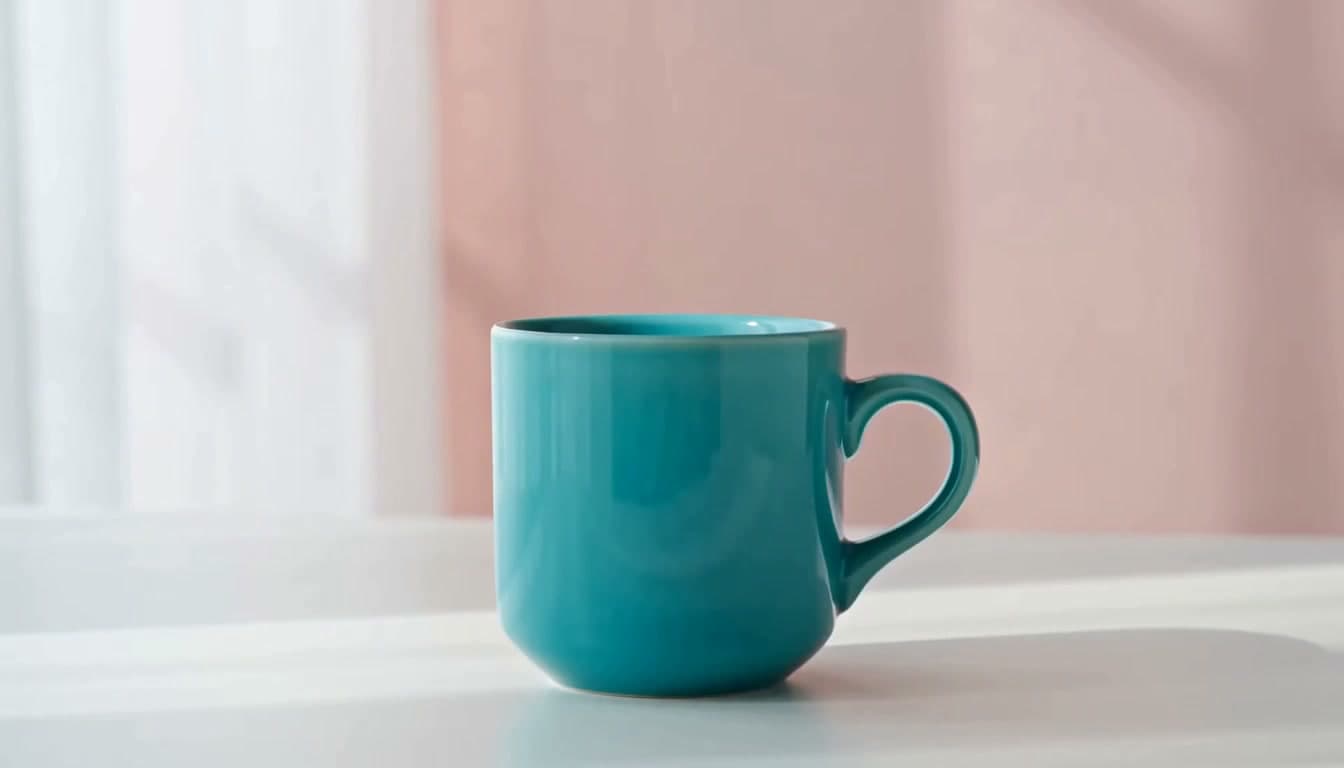
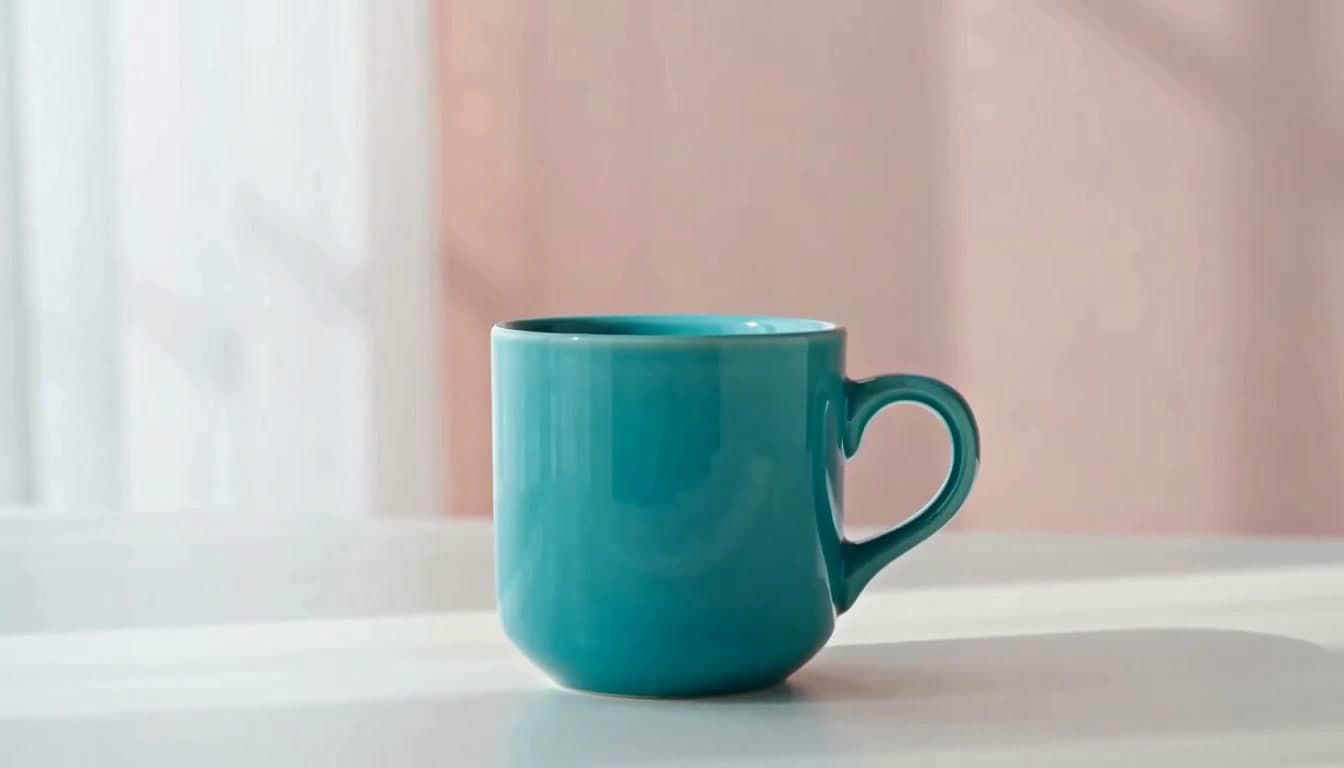
This guide covers six useful movements: push-in, pull-back, sideways tracking, pan, orbit, and a locked-off shot. Three generated examples use the same mug image so you can compare the model's interpretation without changing the subject. The remaining prompts are starting points to test, not additional measured examples.
If you are building a whole scene from text, use the text-to-video generator. If the composition already exists in a photograph, use image-to-video and focus your prompt on movement.
Separate camera movement from subject movement
Write down what stays still before deciding what moves. A mug can rotate while the camera remains fixed. The camera can orbit a stationary mug. Both shots may reveal another side of the product, but they are different instructions, with different implications for shadows and the background.
A compact prompt can follow this structure:
The subject [stays still or performs one action]. The camera [moves in one direction] at [height or distance]. Keep [important detail] visible. One continuous shot.
You do not need to fill every slot. The value is in making the physical relationship clear. Once that works, add the setting and light from the five-part prompt structure.
Six AI video camera movement prompts
1. Push-in: move closer to a subject
A push-in moves the camera toward the subject. In a generated clip, look for the subject becoming larger and for changes in the spatial relationship between foreground and background. Simply naming a push-in does not guarantee a physically exact move.
The tested prompt was:
The ceramic mug stays completely still. The camera slowly moves closer in a straight line at tabletop height. Keep the entire handle visible and preserve the rim, handle shape, turquoise glaze and white tabletop. Soft window light remains constant. One continuous shot.
The mug becomes larger and its base gets close to the bottom edge. That result makes the framing trade-off easy to see. If the last frame feels cramped, begin with more background or ask for a shorter move. Do not assume that asking to keep a detail visible will override all other instructions.
Use a push when you want attention to settle on a detail or expression. For a product, leave room around the edges you need to preserve.
2. Pull-back: reveal more of the setting
A pull-back moves away from the subject. It can turn a close detail into a wider scene, but the newly visible area may need to be invented. In image-to-video, that is a reason to describe the surroundings clearly or begin with a wider source.
Try this prompt:
A ceramic mug stands still on a white tabletop. The camera slowly moves backward at tabletop height, revealing more of the table and a softly lit studio wall. Keep the mug centered. One continuous shot with steady window light.
This is an untested prompt variation. Check whether the model reveals a coherent setting and whether the product keeps its proportions. If the background fills with unwanted objects, simplify the reveal instead of adding several new negative instructions at once.
3. Sideways tracking: move alongside the scene
A sideways tracking shot translates the camera left or right. In ordinary camera work, nearby and distant objects can shift at different rates. That relative movement is one way to distinguish a slide from a simple pan.
Our tested version used:
The ceramic mug stays completely still. The camera slowly slides to the right parallel to the tabletop, maintaining the same distance and height. Keep the entire handle visible and preserve the rim, handle shape, turquoise glaze and white tabletop. Soft window light remains constant. One continuous shot.
The product remains at a relatively similar size. Look at its position against the window and the shadow on the table. The motion in this scene is modest; a prompt name alone is not evidence of a mechanically accurate track.
Sideways tracking is also useful as an instruction for following a moving subject. If the subject walks, describe that action separately from the camera that follows it.
4. Pan: turn the camera from a fixed position
A pan rotates the camera horizontally around a fixed position. It does not mean physically sliding sideways. That distinction is easy to lose when a prompt simply says "move right."
Try this version:
The camera stays at one fixed position and slowly pans right across a studio tabletop. A ceramic mug enters the center of the frame. The mug and all objects remain still. Keep the camera at the same height, with no forward movement or zoom.
This prompt has not been generated for the comparison. When you test it, look for whether the view rotates across the scene or instead moves through it. A single close-up with little background may make the difference difficult to judge. Use a wider setting with recognizable edges when the camera behavior itself is the point of the experiment.
5. Orbit: move around a stationary subject
An orbit changes the viewpoint around the subject. A short arc can add depth without asking for a full turn. A wide orbit is a larger request because it exposes surfaces that were not visible at the beginning.
Our tested prompt was:
The ceramic mug stays completely still. The camera slowly arcs a short distance to the right around the mug at tabletop height. Keep the rim and handle shape unchanged, preserve the turquoise glaze and white tabletop. Soft window light remains constant. One continuous shot.
Watch the visible handle and the relationship between the mug and its shadow. The orbit and sideways-slide outputs look similar in places. That is a useful limitation to preserve in a tutorial: the model's interpretation is not a substitute for a deterministic camera rig.
For recognizable products, compare any newly revealed shape with the real object. The product photo tutorial gives a fuller inspection checklist.
6. Locked-off: keep the camera still
A locked-off shot is a useful starting point when subject motion already matters. Asking a portrait to blink and breathe is simpler to inspect when the camera is not simultaneously circling the head.
Try this prompt:
The camera remains locked off at eye level. The person holds a relaxed pose, blinks once, and breathes quietly. Keep the framing and soft light steady. No camera movement. One continuous shot.
This is a suggested template. A related, separately generated portrait comparison appears in the face distortion guide. Even with a fixed-camera instruction, review the output for unintended drift or zoom.
Compare moves with a consistent test
The three mug clips above used one source image, five seconds, 768P, a shared provider seed, and balanced prompt expansion. The source itself was a frame extracted from a generated H3 Max Turbo scene. Each camera prompt was generated once. The seed is documented for this comparison; the current website does not expose a seed input.
This keeps the setup relatively consistent, but it is not a benchmark. Prompt expansion can rewrite instructions, and a different source or run can produce a different result. There are no measured success rates here. The sample record preserves the prompts, settings, output dimensions, and returned expanded prompts where available.
When comparing your own outputs, use the beginning, middle, and end of the shot:
| Question | Why it helps |
|---|---|
| Did the subject get larger or smaller? | Reveals a push, pull, zoom-like change, or unwanted scale drift |
| Did the background move relative to the subject? | Helps you inspect depth and camera interpretation |
| Did the subject itself rotate or deform? | Separates camera motion from changes to the object |
| Did anything essential leave the frame? | Checks whether the shot is usable at its intended crop |
| Was the requested movement visible at all? | Prevents accepting a prompt label as proof of the result |
Change one motion instruction between attempts. Keep the source, duration, resolution, and lighting description consistent where possible. Save the complete prompt alongside the output so you can explain what actually changed.
Questions about AI camera prompts
Is a push-in the same as a zoom?
In conventional camera work, no. A push changes the camera's position, while an optical zoom changes focal length from the same position. AI video may approximate either effect, so inspect the background and perspective instead of relying on the label.
Can I request an exact angle or distance?
You can describe an intended angle or distance in words, but H3 Max's current web interface does not provide a numerical camera path. Treat those descriptions as direction to review, not guaranteed geometry.
Should I combine several moves in a five-second clip?
Start with one. If a shot needs a turn, a reveal, and a close-up, separate drafts make it easier to see which instruction is working. Add complexity after the essential movement is visible and the subject remains coherent.
Choose a move you can evaluate
Useful AI video camera movements begin with a clear relationship between the subject and camera. Pick a push, pull, slide, pan, orbit, or locked-off shot; write what should stay stable; then inspect the output against that intention. The generator and public examples give you places to create and compare shots, while the prompt remains a record of the direction you gave.